Connect the SMA EV Charger with ChargeDoc
Track your charging costs automatically with the SMA EV Charger 22. Local connection via the ennexOS API on your own Wi-Fi — no cloud, using the credentials you already have.
| Modeller | EV Charger 22 (EVC22-3AC-10) |
| Integrasjon | Lokalt WiFi |
| Autentisering | OAuth2 Password (local ennexOS) |
| Maks. effekt | 22 kW |
| Faser | 3-faset |
| Marked | DACH / PV |
| API-kvalitet | Eksperimentell |
| Status | Tilgjengelig |
Requirements
- Same Wi-Fi network: Your smartphone and the wallbox must be on the same network — the app talks to the wallbox directly via its local IP, without any cloud.
- Static IP address: Assign the wallbox a fixed IP in your router (DHCP reservation). If the IP changes, the connection breaks.
- Local credentials: Username and password of the wallbox's ennexOS web interface — the same ones you use to sign in at
https://<wallbox-ip>in your browser. A regular user account is enough.
You'll find the IP address in the SMA 360° app or ennexOS (device overview → EV Charger → Network), or in your router among the connected devices ("SMA" / "EVC22").
Setup step by step
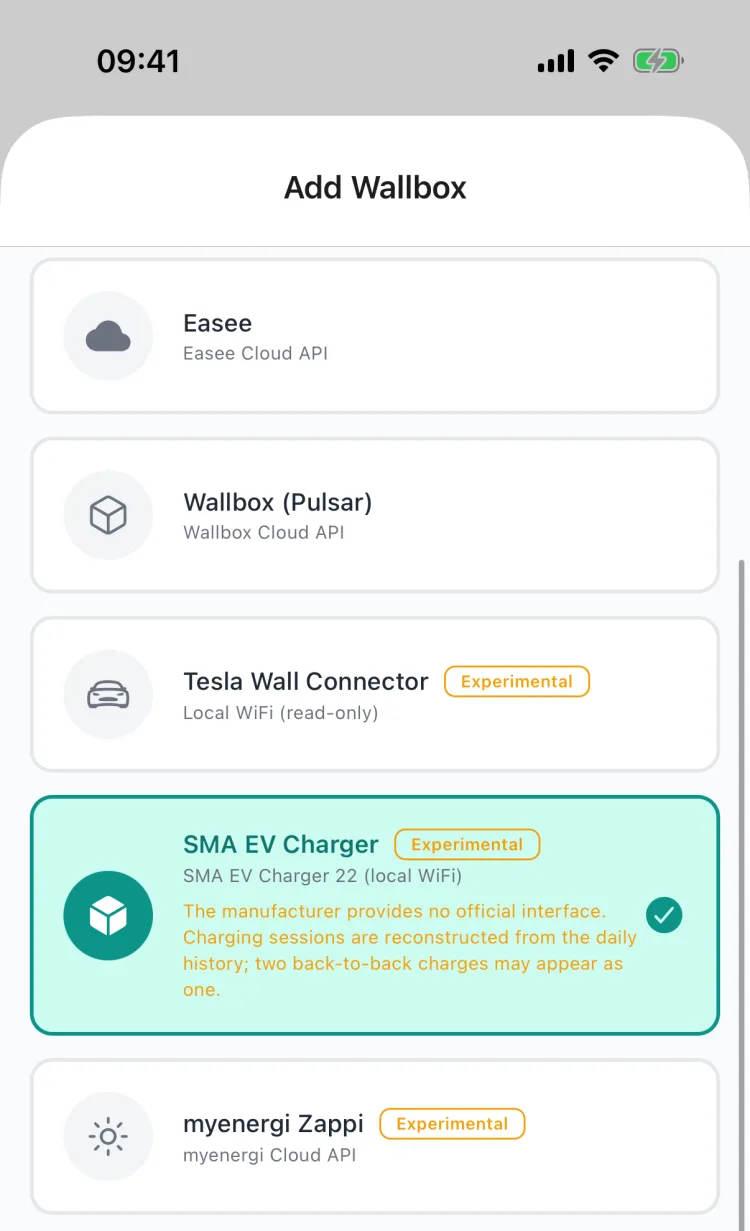
1. Choose the wallbox type
Open More → My Wallboxes → Add Wallbox and select "SMA EV Charger".
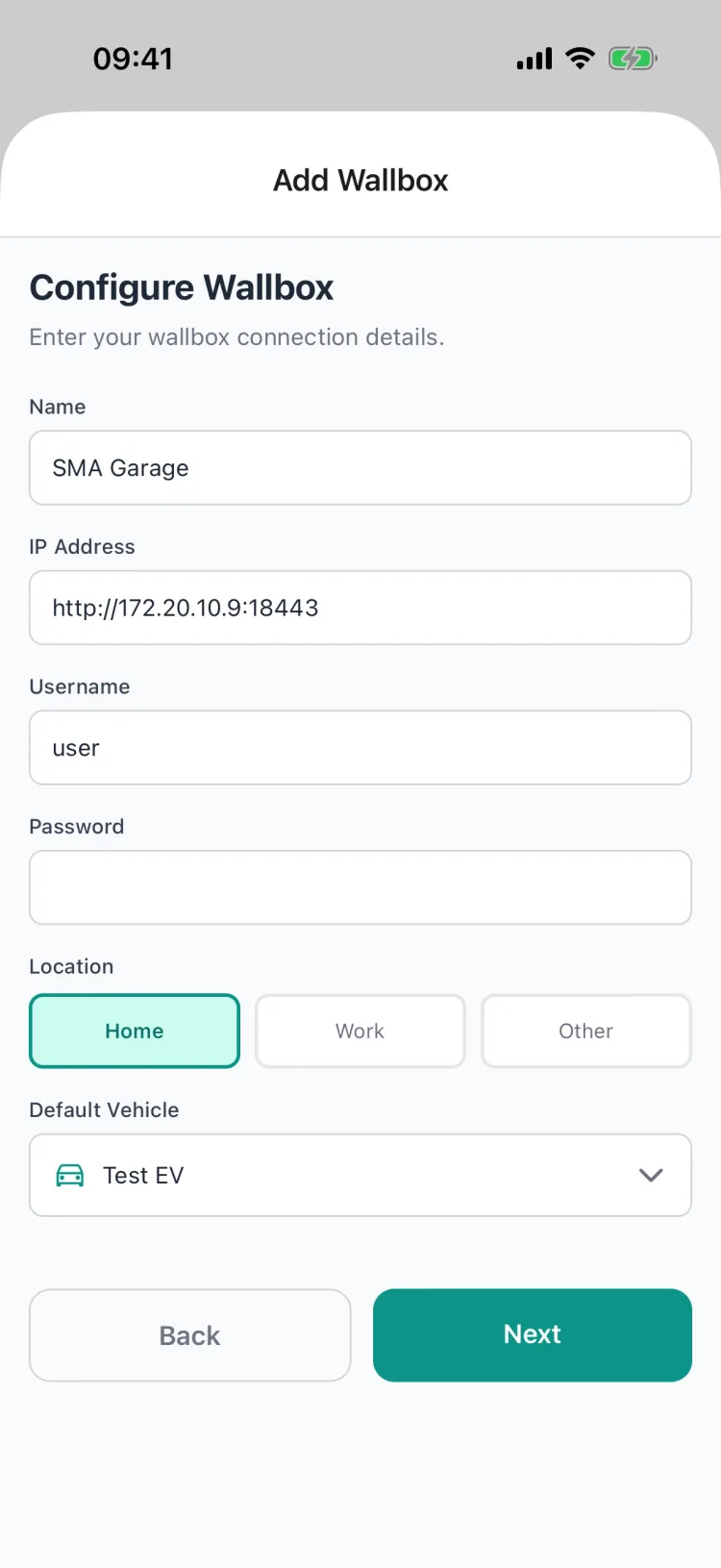
2. Enter connection details
| Field | Example | Meaning |
|---|---|---|
| Name | Garage Wallbox | free to choose |
| IP address | 192.168.1.50 | your wallbox's local IP |
| Username | user | ennexOS web UI login |
| Password | ••••••• | matching password |
| Location | Home | Home / Work / Other |
| Default vehicle | your car | vehicle sessions are assigned to |
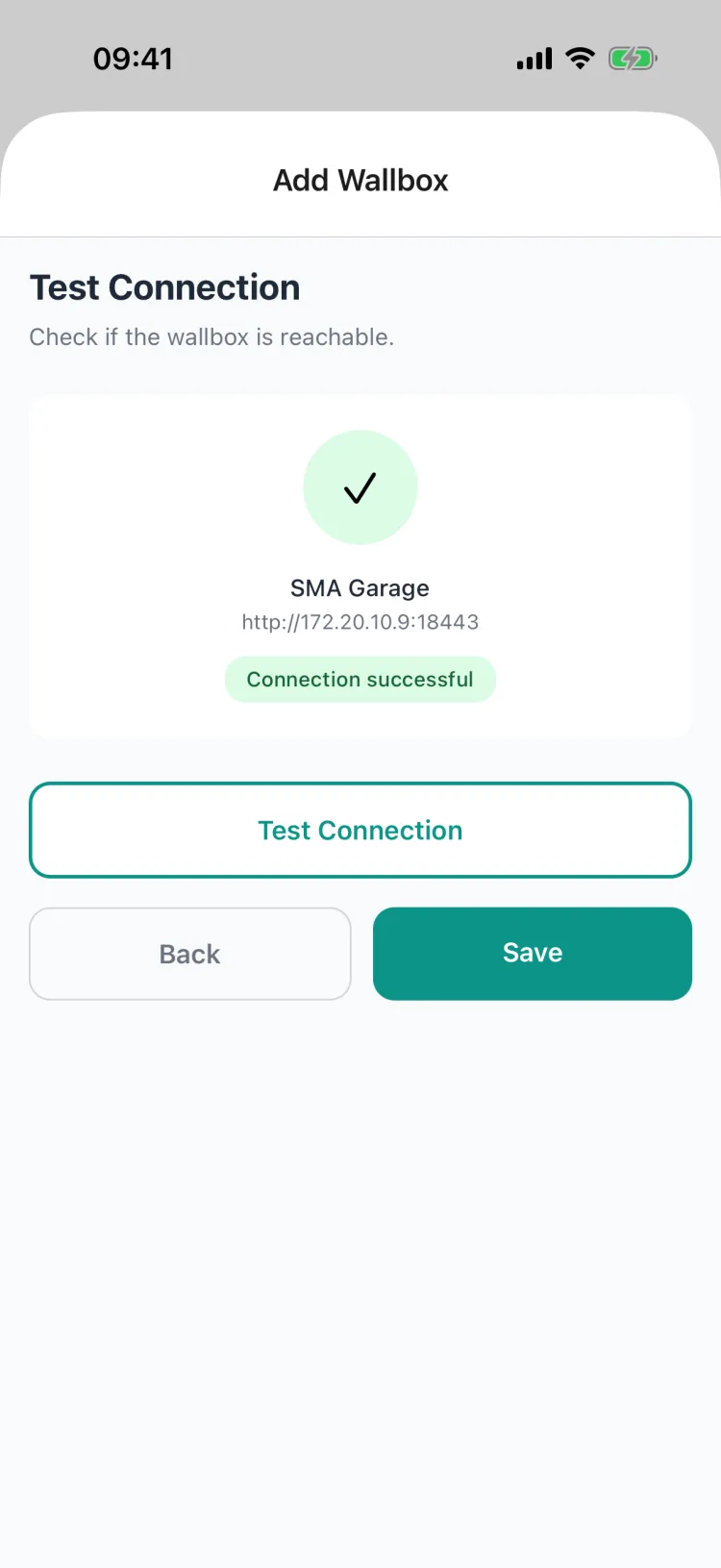
3. Test the connection
Tap Test connection. On success a green checkmark with "Connection successful" appears — then tap Save.
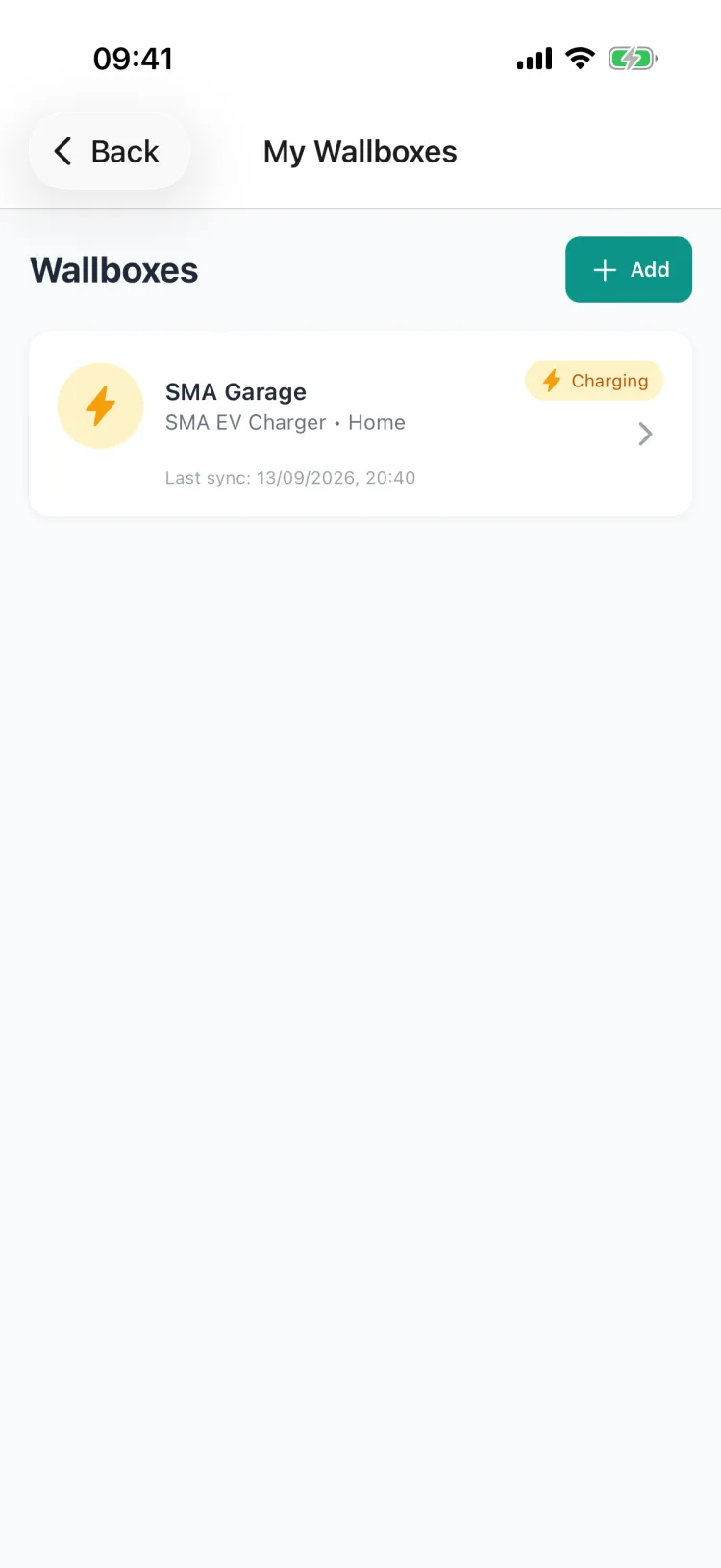
4. Done — live status
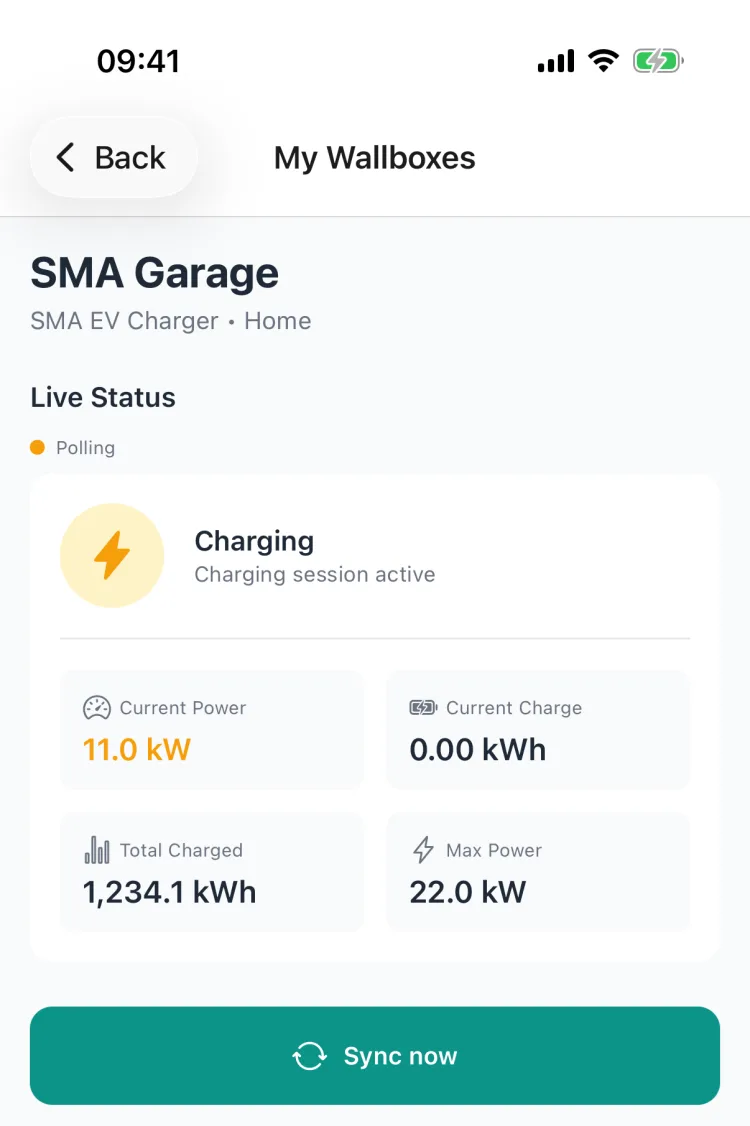
The wallbox now appears in your list. While charging it shows the status "Charging" and the time of the last sync.
Tap it to see the live status with current charging power and total energy:
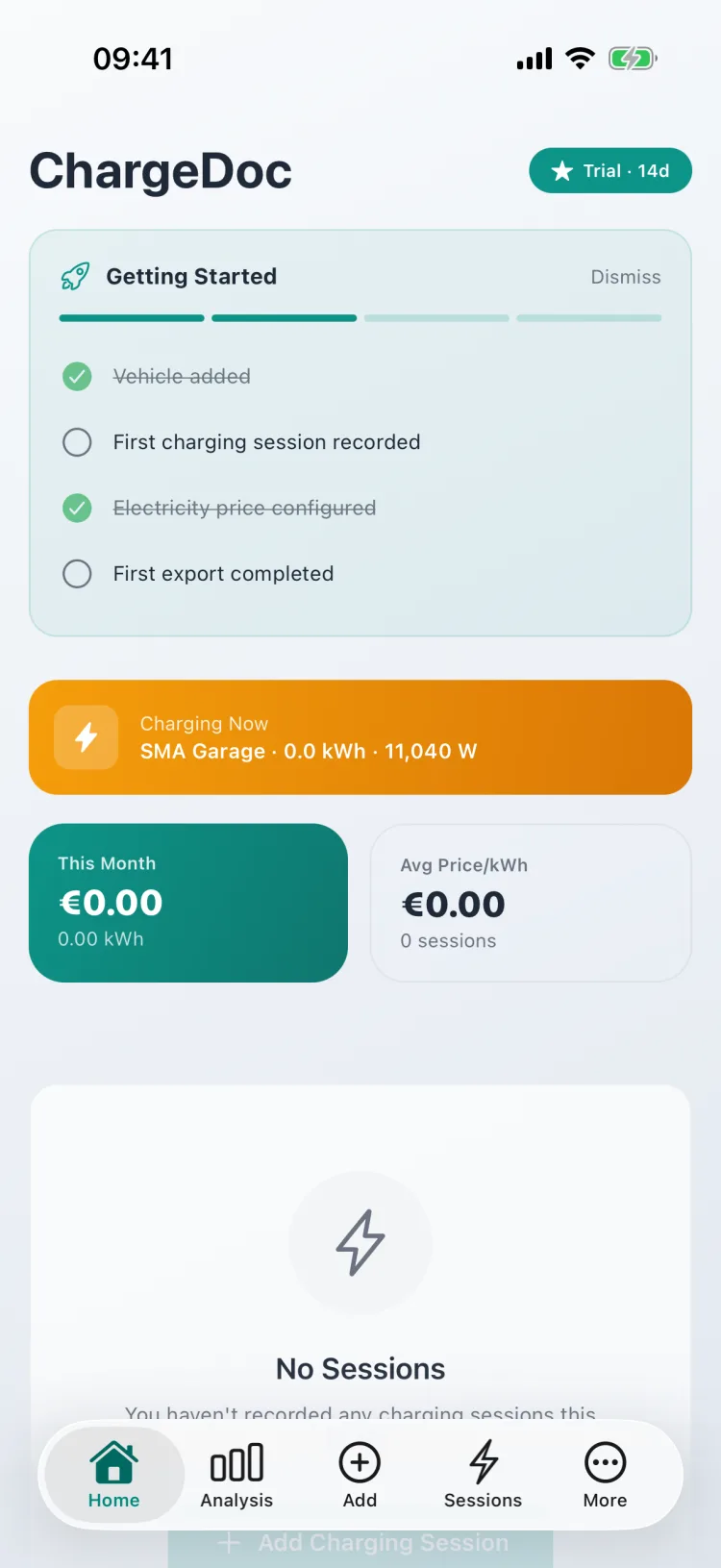
The home screen also shows a live banner during an active charging session:
What ChargeDoc records
For every completed charging session, the app documents:
- Energy charged in kWh (from the wallbox's energy meter)
- Calculated electricity costs based on your individual tariff
- Current charging power while charging (live status)
- Total energy since commissioning
The SMA EV Charger doesn't store a session history itself. ChargeDoc compensates for that: the app detects charging sessions from the rising total energy meter and automatically records a documented session when charging ends — just like with the Tesla Wall Connector.
Local and private
All communication stays on your Wi-Fi:
- No cloud account needed — independent of Sunny Portal and SMA services
- No third-party servers — your charging data stays on your home network
- Existing credentials — no extra API key, no registration
The wallbox serves its API over HTTPS with a self-signed device certificate — that's why your browser warns when opening https://<wallbox-ip>. This is normal for this device and not a security issue on your private network.
Document charging costs for tax purposes
With the SMA EV Charger, ChargeDoc also creates tax-ready records:
- PDF reports for your employer
- DATEV export for your tax advisor
- Audit-proof records with audit log
- Monthly summaries with costs and energy amounts
Especially for solar households with an SMA system and a company car, this is the easiest way to prove home charging costs to your employer or the tax office.
Conclusion
The SMA EV Charger 22 fits seamlessly into ChargeDoc: enter the IP and your ennexOS credentials once, test the connection — from then on every charging session is detected and documented automatically. Fully local, no cloud, with live status while charging.
Slik setter du det opp
Choose the wallbox type
In ChargeDoc, open More → My Wallboxes → Add Wallbox and select "SMA EV Charger" as the type.
Enter connection details
Enter your wallbox's local IP address plus the username and password of its ennexOS web interface. Pick a location and default vehicle.
Test the connection
Tap "Test connection". On success a green checkmark appears — then tap "Save".
Monitoring is live
The wallbox now appears in your list with a live status. ChargeDoc polls it in the background and automatically records a charging session when charging ends.
Ofte stilte spørsmål
Which SMA models are supported?
ChargeDoc supports the SMA EV Charger 22 (model EVC22-3AC-10) via its local ennexOS REST API. The integration is currently in beta.
Which credentials do I need?
The username and password of your wallbox's local ennexOS web interface — the same ones you use to sign in at https://<wallbox-ip> in your browser. A regular user account is enough; installer rights are not required.
Do I need an SMA cloud account (Sunny Portal)?
No. The connection runs entirely locally on your Wi-Fi via the wallbox's IP address. No cloud service, no registration — your charging data never leaves your home network.
Where do I find my wallbox's IP address?
In the SMA 360° app or ennexOS under device overview → EV Charger → Network, or in your router's list of connected devices (look for "SMA" or "EVC22"). Assign a static IP via DHCP reservation so the connection stays stable.
Why does my browser warn about the certificate when I open the wallbox address?
The SMA EV Charger serves its web interface and API over HTTPS with a self-signed device certificate. The browser warning is normal for this device and not an error — ChargeDoc accounts for this when connecting.
What if the connection fails?
If it fails immediately, the IP is usually wrong or the wallbox is not on the same network — test https://<wallbox-ip> in your browser. A login error means username/password don't match the ennexOS web interface. A timeout points to standby mode, a firewall, or a guest Wi-Fi that isolates devices. If the connection drops after a few days, the wallbox got a new IP via DHCP — assign a static IP in your router.
Begynn å registrere ladekostnader nå
Prøv ChargeDoc gratis i 14 dager og registrer ladekostnadene dine automatisk.